


Air Play: Cast to TV
2.7104.00 Reviews
App Specs
- Version
- 45.0
- Updated On
- License
- Free
- Downloads
- 100,000+
- Developer
- Shadow soft
- Categories
- Libraries & Demo
- Platform
- Android
Screenshots

 Analysis by AppCompare
I find the most useful way to think about Air Play: Cast to TV is as a bridge for casual screen sharing, not a replacement for every TV app or streaming device. When I want to show something already on my phone to other people, casting can save everyone from crowding around a small display. The idea is appealing, but the experience depends on the devices in the room and on what I’m trying to share, so I’d approach it as a convenient option rather than a guaranteed fix for every setup.
Where it fits in the current casting landscape
Air Play: Cast to TV is a free app in the Libraries & Demo category from Shadow soft. It has an average rating of 2.7 from around 774 ratings, with over 100,000 installs. Those figures suggest that it has attracted a meaningful audience, while the mixed rating is a sensible reason to keep expectations measured. I would try it for a specific casting need and judge it on my own TV and network rather than assume every connection will behave the same way.
The app is marked for Everyone and is currently at version 41.0, following its release on June 19, 2024. That gives a reader a clear snapshot of its present state, but a version number by itself does not tell me which functions have changed or how much the experience has evolved. I’d treat compatibility and reliability as things to check in practice, not as promises implied by a high version number. The app can be installed on devices running Android 7.0 or later, and it also lists in-app purchases at $14.99 per item, so I’d check the purchase details before choosing any optional paid item.
A practical way to use it at home
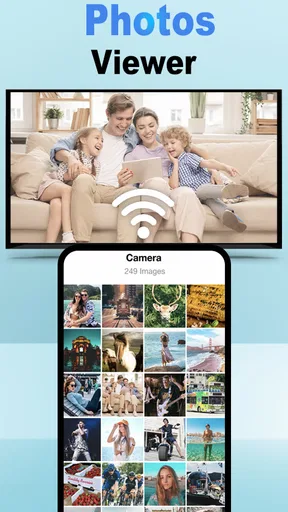
A useful everyday test is a family visit: I have a handful of photos on my phone that everyone wants to see, but passing the handset around means people miss details and the conversation keeps stopping. A casting app can make that moment easier by putting the images on a shared screen. I’d first make sure the phone and TV are ready to communicate, then open the app and look for the intended display before starting. That small pause matters: selecting the wrong nearby screen can be awkward, especially in a home with more than one compatible device.
For a casual gathering, I’d also prepare the content before connecting. Pick the photos or video you want to show, close anything private, and keep the phone nearby so you can manage playback or stop sharing when you’re done. This is less about the app having a special privacy feature and more about a sensible habit whenever a personal device is mirrored to a larger screen. It helps avoid accidentally displaying a notification or unrelated page to the room.
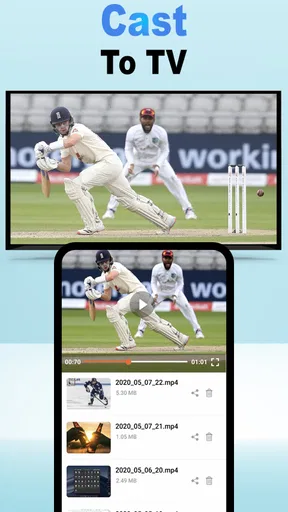
For video, I’d test a short clip before settling in for a longer watch. Casting can involve both the phone and the TV, and a connection that works for still images may not feel equally smooth with moving content. If the picture stutters or the session drops, I’d check the basic setup and retry before assuming the app itself is unusable. If the same problem persists, the TV’s built-in casting option or a dedicated streaming device may be a better route for that particular setup.
Choosing it over built-in tools or another route
The main alternative is often already in the room: a TV’s native screen-sharing or casting function, if the phone and television support a compatible method. That route can be simpler when it is built into the devices and works reliably, because there is less need to add another app to the process. A dedicated streaming device can also be preferable for regular viewing, especially when the goal is to use streaming services from the television rather than share something directly from a phone.
Worth Reading Before You Choose

EA SPORTS FC Mobile 26 Is a Bigger Football Game, but It Takes Time

Flipboard Shows What News Apps Must Do Beyond the Feed

Switching to Android Auto Means Rethinking Your Driving Routine

Google Calendar Makes a Crowded Week Easier to Manage

Ludo King Makes the Most of the Minutes Between Plans

Baby Panda World Brings Quick Play to Modern Phones, but Its Game Library Feels Busy
I see this app as more useful for quick, occasional sharing than as the centerpiece of a home entertainment setup. It may suit someone who wants to put personal photos, a clip, or other phone content on a larger display without turning the task into a technical project. It is less compelling if the TV already handles the same job smoothly, if the user mainly watches content through TV apps, or if a reliable connection is essential for a presentation. In those situations, the built-in option or a tested dedicated device is the safer choice.
One practical trade-off is that casting adds a step between finding content and watching it: I have to connect, choose the right screen, and keep the session working. That is worthwhile when sharing is the point, but unnecessary when the content is already available directly on the TV. Another is that a successful connection does not automatically mean every app or type of media will behave identically. I’d try the exact content I plan to show before relying on it for an important moment.
Seamless Setup and User-Friendly Interface
First things first, getting Air Play: Cast to TV up and running is as easy as pie. The moment I downloaded the app, it guided me through a simple setup process. A few taps here and there, and I was good to go. I didn’t have to fiddle around with cables or dive into a technical manual. The interface is clean and straightforward, so even if you're not a tech wizard, you can navigate it effortlessly.
Once you’re in, the app displays any compatible devices nearby, ready for casting. It’s like magic—one second your content is on your phone, the next it’s on the big screen. No lag, no fuss, just instant gratification.
Versatile Casting Options
What I love about Air Play: Cast to TV is its versatility. Whether you’re an Android fan or an iOS aficionado, this app has got you covered. It supports a wide range of TV brands and streaming devices, making it a one-stop-shop for all your casting needs. I personally tested it with a Samsung Smart TV, and it worked flawlessly.
Got a bunch of photos from your last vacation? Cast them. Want to watch YouTube videos on a bigger screen? You got it. The app gives you the freedom to cast almost anything—photos, videos, music, and even some apps. It’s like having a universal remote for your content.
Performance and Reliability
Now, let’s get into the nitty-gritty—performance. I’ve tried a few casting apps before, and let me tell you, not all are created equal. Some can be a bit glitchy, but with Air Play: Cast to TV, I enjoyed a smooth experience. The connection was stable, and the image quality was top-notch. No pixelation, no buffering. Just crisp, clear visuals.
Another thing that stood out was the app’s reliability. It didn’t drop the connection, even when I switched apps on my phone. I could pause a video to answer a text and resume it without missing a beat. It’s these little things that make all the difference.
Why You Should Consider It
So, why should you give Air Play: Cast to TV a whirl? Here’s the deal: it’s simple, reliable, and versatile. It’s perfect for those family movie nights or when you want to show off photos to a room full of people. Plus, the app is regularly updated, ensuring compatibility with the latest devices and improvements in performance.
In a world where staying connected is key, having an app like Air Play: Cast to TV is a game-changer. It bridges the gap between your handheld device and your TV, making sharing content a joy rather than a chore.
In conclusion, if you’re looking for a hassle-free way to cast content to your TV, this app should be on your radar. It’s like having a personal media server in your pocket, ready to entertain at a moment’s notice.
What I would check before making it a habit
Before I depended on the app for a planned get-together, I’d do one low-stakes trial with the same phone, TV, and kind of content I intend to use later. That answers the practical question people often have—whether it will work with their particular television—better than a general compatibility claim can. A quick photo share is a useful first check; a short video is a more demanding one. If either fails, I’d confirm that I selected the intended display and try again before changing several settings at once.
I’d also keep a backup plan for occasions where timing matters. If I’m showing a presentation or playing a video for guests, having the file ready on a laptop, or using the TV’s own app where possible, avoids making everyone wait while I troubleshoot a phone-to-TV connection. For casual photo browsing, a short setup delay is usually no big deal. For a meeting or a special event, predictability matters more than convenience.
What the version tells me—and what it doesn’t
The current version gives existing users a useful point of reference when checking whether they have the latest build, and the release date helps place the app’s history. But I wouldn’t infer a list of improvements from version 41.0 alone. If a connection behaves differently after an update, I’d first try a fresh connection and test again with familiar content; that separates a one-off setup problem from a change I can reproduce. For someone considering installation, the practical question is still whether the app works with their own devices.
That distinction matters because updates can change an app’s behavior, but the number attached to a release is not a substitute for trying the actual workflow. I’d watch for clear changes in device discovery, session stability, and the way the app handles the media I use most. Those are the details that affect an existing user day to day. Until I see a difference in those tasks, I’d avoid assuming that a newer build has solved every compatibility issue.
Who is likely to get the most from it
I’d recommend giving it a try if you often have content on your phone that is more enjoyable to share on a television, and you don’t want to make a dedicated streaming box part of the routine. It makes particular sense for occasional photo viewing, showing a short clip to family, or sharing something on a larger screen while keeping the phone as the source. The free download lowers the barrier to testing the fit, though optional purchases are listed, so I’d review any payment prompt carefully rather than assume every part of the experience is free.
I’d be more cautious if you need flawless playback for long videos, rely on the TV for work presentations, or are already happy with its built-in casting. In those cases, I’d test thoroughly or choose the more dependable option you already know. The average rating is modest, so it would be a mistake to treat the app as universally trouble-free. My advice is simple: test your exact setup before building a routine around it, and keep a direct-to-TV alternative in mind if the connection proves inconsistent.
Overall, I see this as a handy tool for the moments when phone content needs a bigger audience, rather than a must-have for every household. Its appeal is the straightforward idea of bringing personal media to the television; its main caveat is that the result depends on the devices and the content involved. If your first trial is smooth, it can make spontaneous sharing feel much easier. If it isn’t, your TV’s native feature or a dedicated streaming device may be the better fit.
Pros
- Easy to navigate interface for quick casting.
- Supports a wide range of media formats.
- No noticeable lag during streaming.
- Compatible with most smart TVs.
- High-quality video output is maintained.
Cons
- Occasional connectivity issues with older devices.
- Ads can interrupt the streaming experience.
- Limited support for some media apps.
- Requires stable Wi-Fi for optimal performance.
- Free version has restricted features.
FAQs for Air Play: Cast to TV
What is Air Play: Cast to TV and how does it work?
Air Play: Cast to TV is an app that allows you to stream media content from your mobile device directly to your TV. It works by connecting your phone and TV to the same Wi-Fi network, enabling seamless mirroring of videos, photos, and music. The app is compatible with most smart TVs and streaming devices, providing an easy way to enjoy your media on a larger screen.
Is Air Play: Cast to TV compatible with all TV brands?
While Air Play: Cast to TV supports a wide range of TV brands, compatibility may vary based on the model and software version of your TV. Generally, it works well with most smart TVs and devices like Chromecast and Roku. It's advisable to check the app’s compatibility list or test with a trial version to ensure it works with your specific TV model.
Are there any costs associated with using Air Play: Cast to TV?
Air Play: Cast to TV offers both free and premium versions. The free version includes basic casting features, while the premium version unlocks advanced functionalities such as no ads, enhanced streaming quality, and additional support for more file formats. Users can choose to upgrade within the app to enjoy the full range of features.
How secure is my data when using Air Play: Cast to TV?
Air Play: Cast to TV prioritizes user security by using encrypted connections to ensure that your data remains private during streaming. However, it's important to always use a secure Wi-Fi network and keep your app updated to the latest version to benefit from the latest security enhancements and protections.
What should I do if I encounter issues with the app?
If you experience problems with Air Play: Cast to TV, there are several troubleshooting steps you can take. First, ensure both your device and TV are on the same Wi-Fi network. Restart the app and your devices if necessary. If issues persist, consult the app’s help section or contact customer support for further assistance. Regular updates and patches are released to address common issues and improve performance.


